|
Function Get-ReAgentCInfo { |
|
<# |
|
.SYNOPSIS |
|
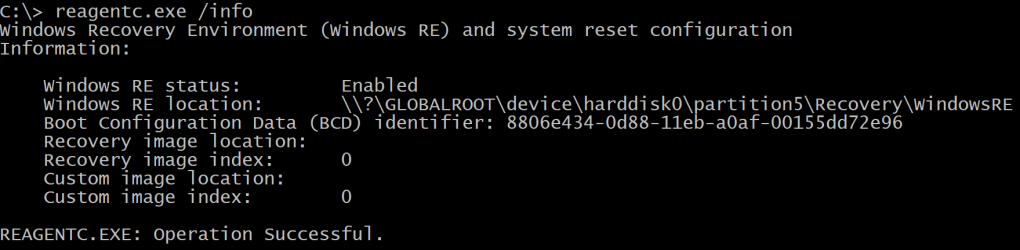
Get the Windows Recovery Partition (WinRE) info using reagentc.exe |
|
|
|
.DESCRIPTION |
|
Get the Windows Recovery Partition (WinRE) info using reagentc.exe |
|
|
|
#> |
|
[CmdletBinding()] |
|
Param() |
|
Begin {} |
|
Process {} |
|
End { |
|
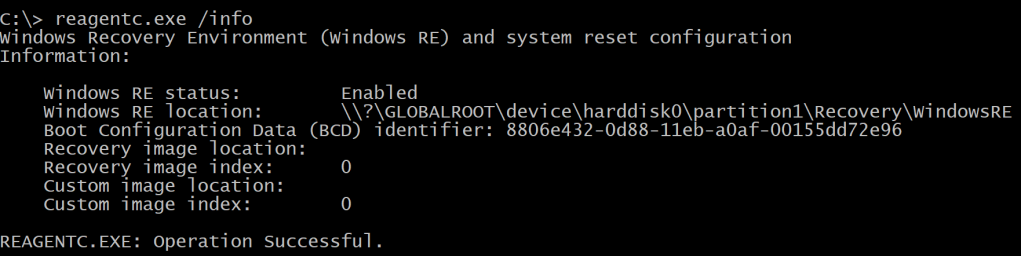
& (Get-Command "$($env:systemroot)\system32\reagentc.exe") @('/info') | |
|
Select-Object -Skip 3 | |
|
Select-Object -First 7| |
|
ForEach-Object { |
|
if ($_ -match ':\s') { |
|
$n,$s=$_ -split ':' |
|
[PSCustomObject]@{Name = $n.Trim() ; Value = $s.Trim()} |
|
} |
|
} |
|
} |
|
} |
|
|
|
Function Get-WinRELocation { |
|
<# |
|
.SYNOPSIS |
|
Get the Windows Recovery Partition (WinRE) location |
|
|
|
.DESCRIPTION |
|
Get the Windows Recovery Partition (WinRE) location |
|
|
|
#> |
|
[CmdletBinding()] |
|
Param() |
|
Begin {} |
|
Process {} |
|
End { |
|
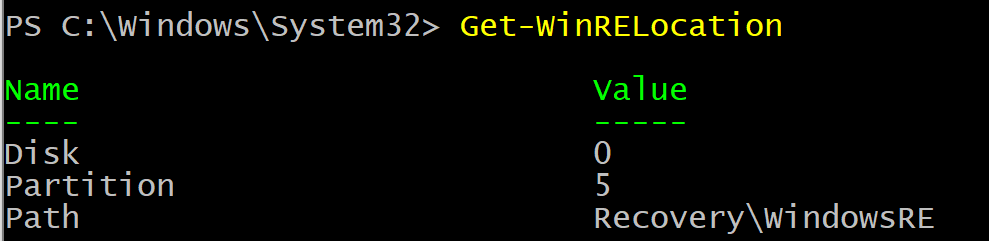
([regex]'\\\\\?\\GLOBALROOT\\device\\harddisk(?<Disk>\d{1})\\partition(?<Partition>\d{1})\\(?<Path>.+)').Matches( |
|
(Get-ReAgentCInfo | Where-Object { $_.Name -match '^Windows\sRE\slocation' }).Value |
|
) | Select-Object -ExpandProperty Groups | Select-Object -Last 3 | ForEach-Object { |
|
@{ "$($_.Name)" = $_.Value } |
|
} |
|
} |
|
} |
|
|
|
Function Get-WinREPartition { |
|
<# |
|
.SYNOPSIS |
|
Get the Windows Recovery Partition (WinRE) |
|
|
|
.DESCRIPTION |
|
Get the Windows Recovery Partition (WinRE) |
|
|
|
#> |
|
[CmdletBinding()] |
|
Param() |
|
Begin {} |
|
Process {} |
|
End { |
|
if ($r = Get-WinRELocation) { |
|
if ($r.Disk -match '\d{1}') { |
|
if ($r.Partition -match '\d{1}') { |
|
try { |
|
Get-Partition -DiskNumber "$($r.Disk)" -PartitionNumber "$($r.Partition)" -ErrorAction Stop |
|
} catch { |
|
Write-Warning -Message "Failed to get partition because $($_.Exception.Message)" |
|
} |
|
} else { |
|
Write-Warning -Message 'Partition returned from Get-WinRELocation is not a digit' |
|
} |
|
} else { |
|
Write-Warning -Message 'Disk returned from Get-WinRELocation is not a digit' |
|
} |
|
} |
|
} |
|
} |
|
|
|
Function Get-WinREPartitionExtendedInfo { |
|
<# |
|
.SYNOPSIS |
|
Get extended info about the Windows Recovery Partition (WinRE) |
|
|
|
.DESCRIPTION |
|
Get extended info about the Windows Recovery Partition (WinRE) |
|
|
|
#> |
|
[CmdletBinding()] |
|
Param() |
|
Begin {} |
|
Process {} |
|
End { |
|
if($winRE = Get-WinREPartition) { |
|
[PSCustomObject]@{ |
|
Size = $winRE.Size |
|
FreeSpace = ($winRE | Get-Volume).SizeRemaining |
|
Type = $winRE.Type |
|
} |
|
} |
|
} |
|
} |
|
|
|
Function Test-WinREPartition { |
|
<# |
|
.SYNOPSIS |
|
Test if the Windows Recovery Partition is less than 250MB |
|
|
|
.DESCRIPTION |
|
Test if the Windows Recovery Partition is less than 250MB |
|
|
|
.PARAMETER FreespaceMB |
|
Specify the minimum freespace required in MB. |
|
By default, 250MB are used. |
|
|
|
#> |
|
[OutputType([system.Boolean])] |
|
[CmdletBinding()] |
|
Param( |
|
[Parameter()] |
|
[ValidateRange(1048576,2146435072)] |
|
[int32]$FreespaceMB = 250MB |
|
) |
|
Begin {} |
|
Process {} |
|
End { |
|
if ($WinREInfo = Get-WinREPartitionExtendedInfo) { |
|
if ($winREInfo.FreeSpace -lt $FreespaceMB) { |
|
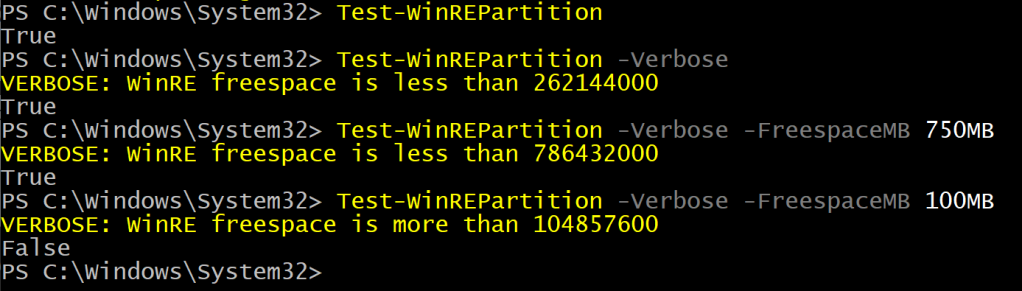
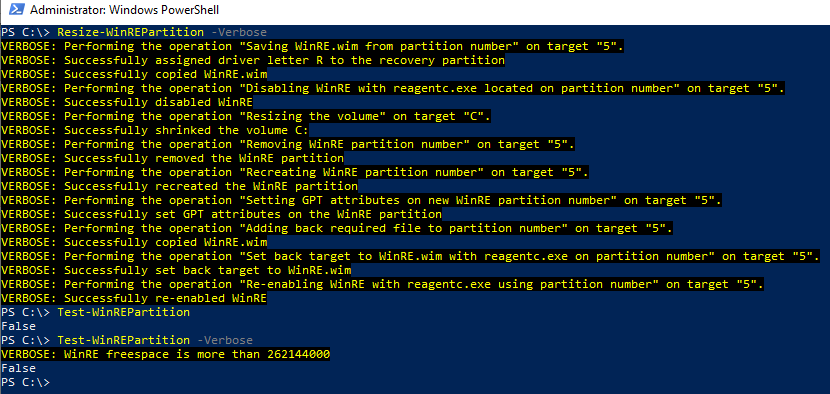
Write-Verbose -Message "WinRE freespace is less than $($FreespaceMB)" |
|
$true |
|
} else { |
|
Write-Verbose -Message "WinRE freespace is more than $($FreespaceMB)" |
|
$false |
|
} |
|
} else { |
|
Write-Warning -Message 'Could not reliably get WinRE partition info' |
|
$false |
|
} |
|
} |
|
|
|
} |
|
|
|
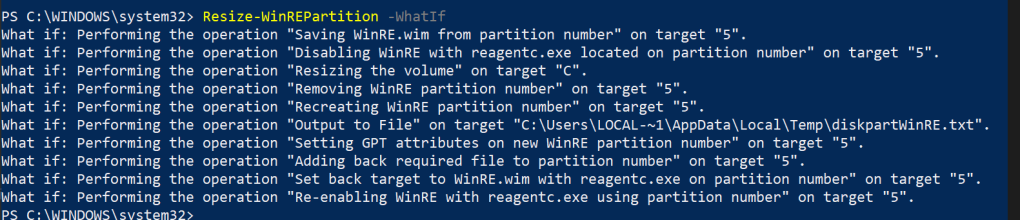
Function Resize-WinREPartition { |
|
<# |
|
.SYNOPSIS |
|
Resize the Windows Recovery (WinRE) partition |
|
|
|
.DESCRIPTION |
|
Resize the Windows Recovery (WinRE) partition |
|
|
|
.PARAMETER Size |
|
Specify the size in MB that should be added to the partition. |
|
By default 250MB will be added. A maximum of 2047MB can be specified. |
|
|
|
.PARAMETER OperatingSystemPartitionLetter |
|
Specify the letter of the operation system partition. |
|
By default, the C driver letter is used |
|
|
|
#> |
|
[CmdletBinding(SupportsShouldProcess)] |
|
Param( |
|
[Parameter()] |
|
[ValidateRange(1048576,2146435072)] |
|
[int32]$Size = 250MB, |
|
|
|
[Parameter()] |
|
$OperatingSystemPartitionLetter = 'C' |
|
) |
|
Begin { |
|
$ReAgentInfo = Get-ReAgentCInfo |
|
$REPartInfo = Get-WinREPartition -WarningVariable w -WarningAction SilentlyContinue |
|
$REExtInfo = Get-WinREPartitionExtendedInfo |
|
} |
|
Process {} |
|
End { |
|
if (Test-Path -Path 'R:\') { |
|
Write-Warning -Message 'R drive letter is already in use, must be available, cannot continue' |
|
return |
|
} |
|
|
|
if (-not($REPartInfo)) { |
|
Write-Warning -Message 'Failed to obtain reliable WinRE info, cannot continue' |
|
return |
|
} |
|
|
|
if ($REExtInfo.Type -ne 'Recovery' ) { |
|
Write-Warning -Message 'GPT type required to continue' |
|
return |
|
} |
|
if ($REPartInfo.PartitionNumber -eq 1) { |
|
Write-Warning -Message 'WinRE is at the left of the OS partition, it requires adding a new one at the end of the disk' |
|
return |
|
} |
|
$REDisabledOk = $RemovedPartOk = $osPartOk = $NewWinREPartOk = $REFolderOk = $RLetterOk = $false |
|
|
|
# Step 1. Save WinRE.wim |
|
if ($pscmdlet.ShouldProcess("$(($REPartInfo).PartitionNumber)",'Saving WinRE.wim from partition number')) { |
|
try { |
|
$HT = @{ |
|
DiskNumber = "$(($REPartInfo).DiskNumber)" |
|
PartitionNumber = "$(($REPartInfo).PartitionNumber)" |
|
ErrorAction = 'Stop' |
|
} |
|
Get-Partition @HT | Set-Partition -NewDriveLetter R -ErrorAction Stop |
|
$RLetterOk = $true |
|
Write-Verbose -Message 'Successfully assigned driver letter R to the recovery partition' |
|
} catch { |
|
Write-Warning -Message "Failed to assign letter R to the recovery partition because $($_.Exception.Message)" |
|
} |
|
if ($RLetterOk) { |
|
$null = & (Get-Command "$($env:systemroot)\system32\robocopy.exe") @('R:\Recovery\WindowsRE',"$($env:temp)\WinRE.Safe",'WinRE.wim','/R:0','/Z') |
|
if ($LASTEXITCODE -eq 1) { |
|
# https://learn.microsoft.com/en-us/troubleshoot/windows-server/backup-and-storage/return-codes-used-robocopy-utility |
|
Write-Verbose -Message 'Successfully copied WinRE.wim' |
|
} else { |
|
Write-Warning -Message 'Failed to copy WinRE.wim' |
|
} |
|
} |
|
} |
|
|
|
# Step 2. Disable WinRE |
|
if ($pscmdlet.ShouldProcess("$(($REPartInfo).PartitionNumber)",'Disabling WinRE with reagentc.exe located on partition number')) { |
|
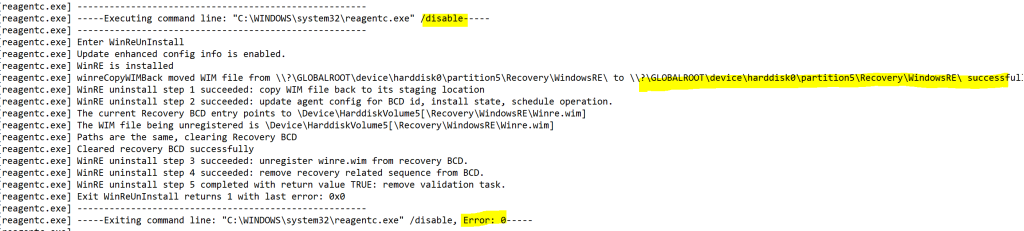
$null = & (Get-Command "$($env:systemroot)\system32\reagentc.exe") @('/disable') |
|
} |
|
if ((Get-ReAgentCInfo | Where-Object { $_.Name -match '^Windows\sRE\sStatus' }).Value -eq 'Disabled') { |
|
Write-Verbose -Message 'Successfully disabled WinRE' |
|
$REDisabledOk = $true |
|
} else { |
|
if ($PSBoundParameters.ContainsKey('WhatIf')) { |
|
$REDisabledOk = $true |
|
} else { |
|
Write-Warning -Message 'Failed to disable WinRE, cannot continue' |
|
} |
|
} |
|
|
|
if ($REDisabledOk) { |
|
|
|
# Step 3. Resize main OS drive |
|
try { |
|
$HT = @{ |
|
DriveLetter = "$($OperatingSystemPartitionLetter)" |
|
Size = ((Get-Partition -DriveLetter $($OperatingSystemPartitionLetter)).Size – $Size) |
|
ErrorAction = 'Stop' |
|
} |
|
if ($pscmdlet.ShouldProcess("$($OperatingSystemPartitionLetter)",'Resizing the volume')) { |
|
$OSPart = Resize-Partition @HT -PassThru |
|
Write-Verbose -Message "Successfully shrinked the volume $($OperatingSystemPartitionLetter):" |
|
} |
|
$OsPartOk = $true |
|
} catch { |
|
Write-Warning -Message "Failed to shrink $($OperatingSystemPartitionLetter): from $($Size) because $($_.Exception.Message)" |
|
} |
|
|
|
# Step 4. Remove WinRE part |
|
if ($osPartOk) { |
|
try { |
|
$HT = @{ |
|
DiskNumber = "$(($REPartInfo).DiskNumber)" |
|
PartitionNumber = "$(($REPartInfo).PartitionNumber)" |
|
Confirm = $false |
|
ErrorAction = 'Stop' |
|
} |
|
if ($pscmdlet.ShouldProcess("$(($REPartInfo).PartitionNumber)",'Removing WinRE partition number')) { |
|
$RemovedPart = Remove-Partition @HT -PassThru |
|
Write-Verbose -Message 'Successfully removed the WinRE partition' |
|
} |
|
$RemovedPartOk = $true |
|
} catch { |
|
Write-Warning -Message "Failed to remove the WinRE partition because $($_.Exception.Message)" |
|
} |
|
} |
|
|
|
# Step 5. Recreate WinRE part |
|
if ($RemovedPartOk) { |
|
try { |
|
$HT = @{ |
|
DiskNumber = "$(($REPartInfo).DiskNumber)" |
|
UseMaximumSize = [switch]::Present |
|
GptType = '{de94bba4-06d1-4d40-a16a-bfd50179d6ac}' |
|
IsHidden = [switch]::Present |
|
ErrorAction = 'Stop' |
|
} |
|
if ($pscmdlet.ShouldProcess("$(($REPartInfo).PartitionNumber)",'Recreating WinRE partition number')) { |
|
$NewWinREPart = New-Partition @HT |
|
Write-Verbose -Message 'Successfully recreated the WinRE partition' |
|
} |
|
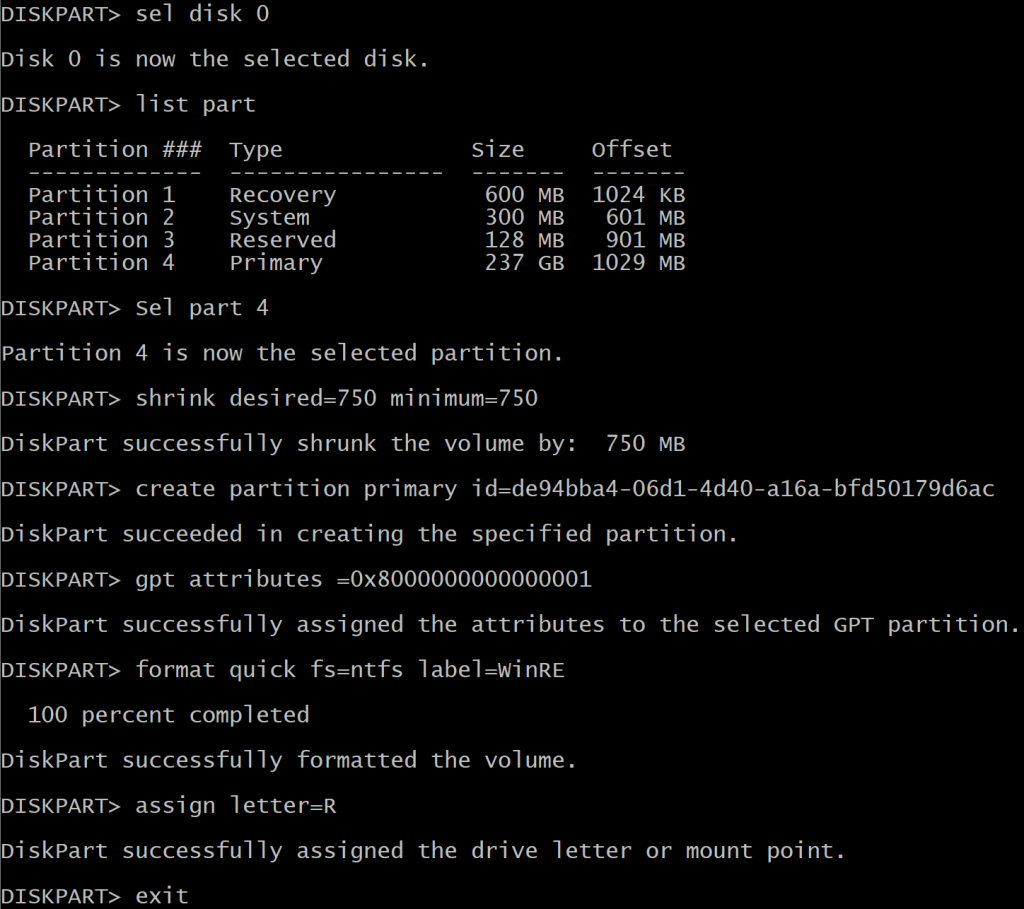
@' |
|
sel disk {0} |
|
sel part {1} |
|
gpt attributes=0x8000000000000001 |
|
format quick fs=ntfs label='WinRE' |
|
assign letter=R |
|
'@ -f "$($REPartInfo.DiskNumber)","$($REPartInfo.PartitionNumber)" | |
|
Out-File -FilePath "$($env:temp)\diskpartWinRE.txt" -Encoding ascii -ErrorAction Stop -Force |
|
|
|
if ($pscmdlet.ShouldProcess("$(($REPartInfo).PartitionNumber)",'Setting GPT attributes on new WinRE partition number')) { |
|
# https://learn.microsoft.com/en-us/windows-server/administration/windows-commands/diskpart-scripts-and-examples |
|
Start-Sleep -Seconds 15 |
|
$null = & (Get-Command "$($env:systemroot)\system32\diskpart.exe") @('/s',"$($env:temp)\diskpartWinRE.txt") |
|
} |
|
if ($LASTEXITCODE -eq 0) { |
|
Write-Verbose -Message 'Successfully set GPT attributes on the WinRE partition' |
|
$NewWinREPartOk = $true |
|
} else { |
|
if ($PSBoundParameters.ContainsKey('WhatIf')) { |
|
$NewWinREPartOk = $true |
|
} else { |
|
Write-Warning -Message 'Failed to set the GPT attributes on the WinRE partition' |
|
} |
|
} |
|
} catch { |
|
Write-Warning -Message "Failed recreate the WinRE partition because $($_.Exception.Message)" |
|
} |
|
} |
|
|
|
if ($NewWinREPartOk) { |
|
# Step 6. Add back WinRE.wim |
|
if ($pscmdlet.ShouldProcess("$(($REPartInfo).PartitionNumber)",'Adding back required file to partition number')) { |
|
try { |
|
$null = New-Item -Path 'R:\Recovery\WindowsRE' -ItemType Directory -Force -ErrorAction Stop |
|
$REFolderOk = $true |
|
} catch { |
|
Write-Warning -Message "Failed to create R:\Recovery\WindowsRE folder because $($_.Exception.Message)" |
|
} |
|
if ($REFolderOk) { |
|
$null = & (Get-Command "$($env:systemroot)\system32\robocopy.exe") @("$($env:temp)\WinRE.Safe",'R:\Recovery\WindowsRE','WinRE.wim','/R:0','/Z') |
|
if ($LASTEXITCODE -eq 1) { |
|
# https://learn.microsoft.com/en-us/troubleshoot/windows-server/backup-and-storage/return-codes-used-robocopy-utility |
|
Write-Verbose -Message 'Successfully copied WinRE.wim' |
|
} else { |
|
Write-Warning -Message 'Failed to copy WinRE.wim' |
|
} |
|
} |
|
} |
|
# Step 7. Set back target to WinRE.wim |
|
if ($pscmdlet.ShouldProcess("$(($REPartInfo).PartitionNumber)",'Set back target to WinRE.wim with reagentc.exe on partition number')) { |
|
$null = & (Get-Command "$($env:systemroot)\system32\reagentc.exe") @('/setreimage','/path','R:\Recovery\WindowsRE\Winre.wim','/target','C:\Windows') |
|
if ($LASTEXITCODE -eq 0) { |
|
Write-Verbose -Message 'Successfully set back target to WinRE.wim' |
|
} else { |
|
Write-Warning -Message 'Failed to set back target to WinRE.wim' |
|
} |
|
} |
|
# Step 8. Re-enable WinRE |
|
if ($pscmdlet.ShouldProcess("$(($REPartInfo).PartitionNumber)",'Re-enabling WinRE with reagentc.exe using partition number')) { |
|
$null = & (Get-Command "$($env:systemroot)\system32\reagentc.exe") @('/enable') |
|
if ($LASTEXITCODE -eq 0) { |
|
Write-Verbose -Message 'Successfully re-enabled WinRE' |
|
} else { |
|
Write-Warning -Message 'Failed to re-enable WinRE' |
|
} |
|
} |
|
} |
|
} |
|
} |
|
} |
|
|
|
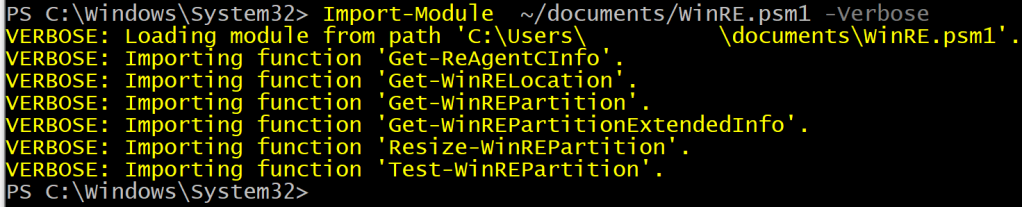
Export-ModuleMember -Function 'Get-ReAgentCInfo','Get-WinRELocation','Get-WinREPartition', |
|
'Get-WinREPartitionExtendedInfo','Test-WinREPartition','Resize-WinREPartition' |



















 >_
>_ 